Using tscircuit KiCad PCM URLs
Overview
tscircuit packages can be installed directly into KiCad using the Plugin and Content Manager (PCM). Each published tscircuit package includes a KiCad PCM URL that points to a repository hosted on tscircuit.app containing the symbols, footprints, and 3D models for all components in the package.
This guide walks you through the process of adding a tscircuit package to KiCad using the PCM URL.
Step 1: Find the KiCad PCM URL
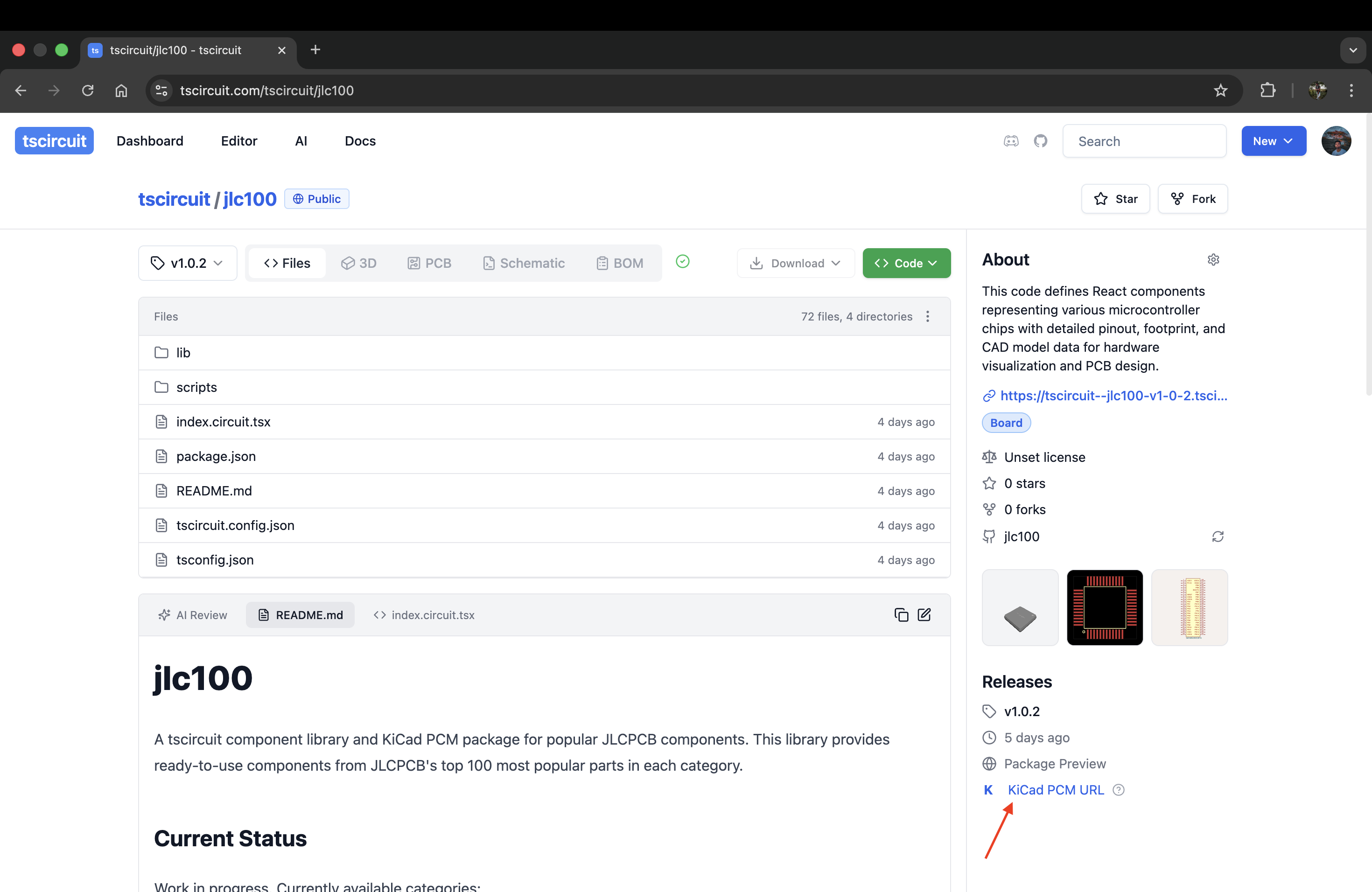
Navigate to your tscircuit package page on tscircuit.com. In the Releases section on the right sidebar, you'll find a KiCad PCM URL link. If you don't see this link, enable kicadPcm in your tscircuit config (see tscircuit config).
Step 2: Copy the Repository URL
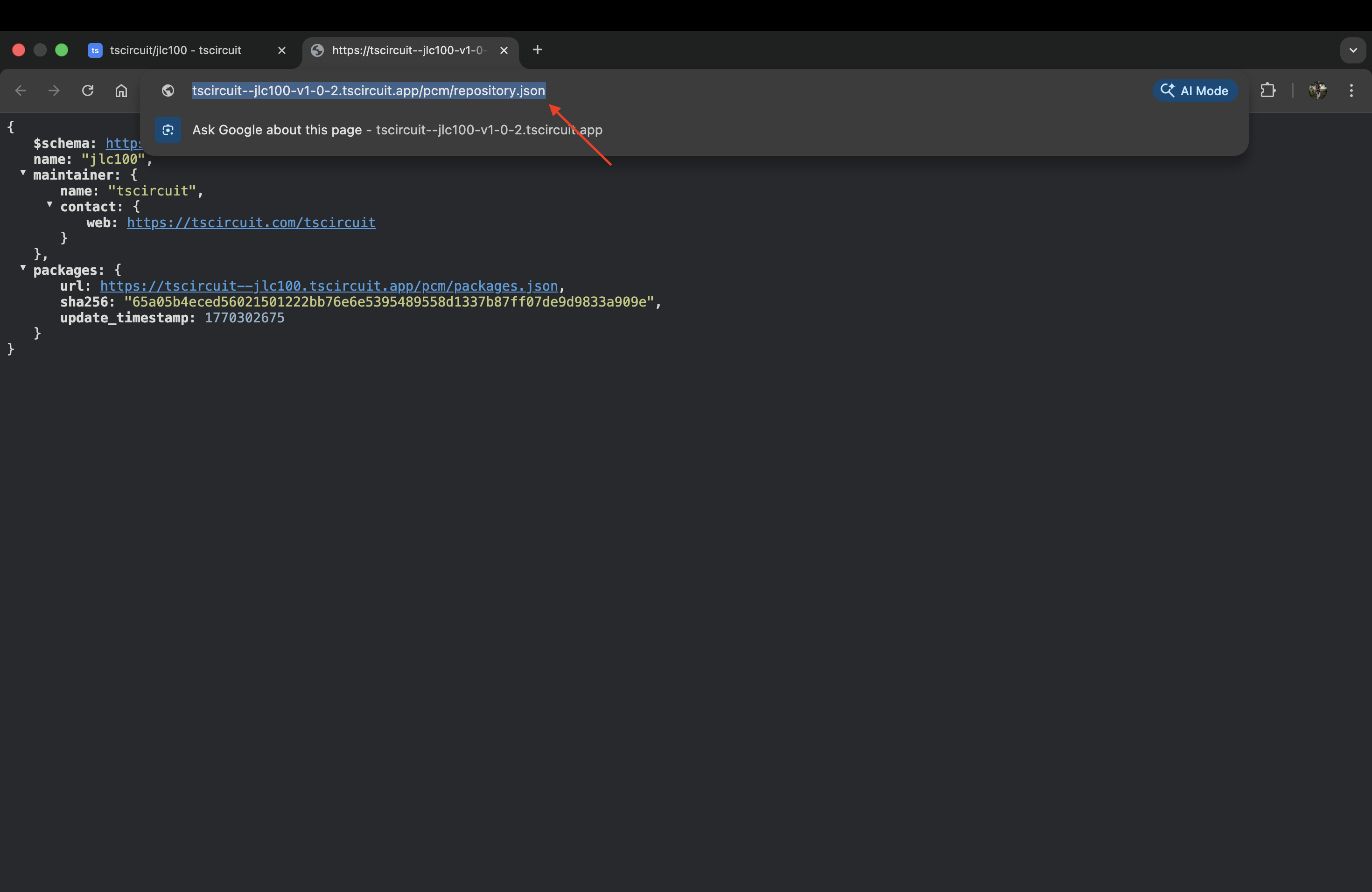
Click the KiCad PCM URL link to open the repository JSON file in your browser. Copy the full URL from the address bar.
Step 3: Add the Repository in KiCad PCM
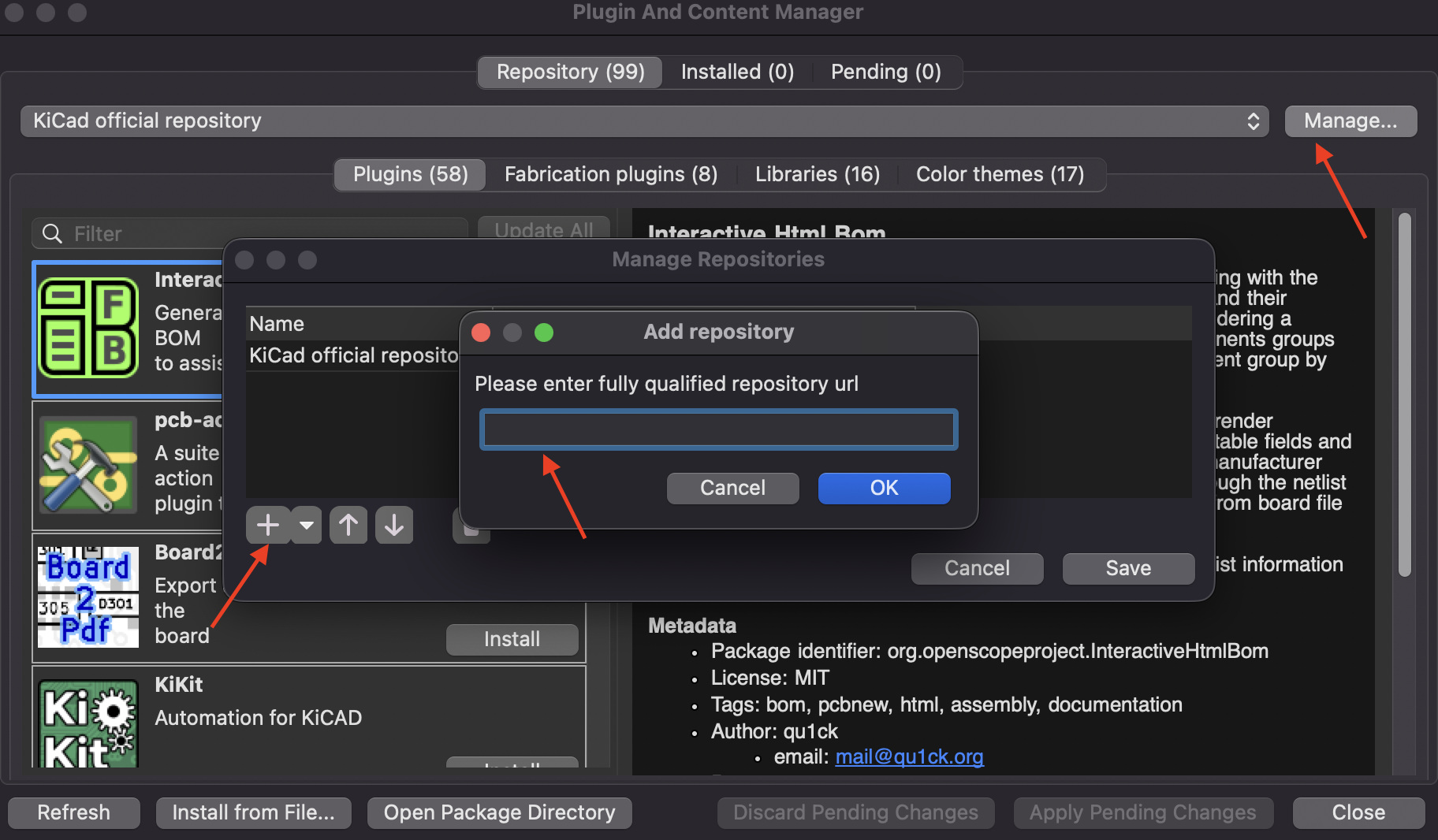
- Open KiCad and go to Tools > Plugin and Content Manager
- Click the Manage... button in the top-right corner
- In the "Manage Repositories" dialog, click the + button to add a new repository
- Paste the repository URL you copied and click OK
- Click Save to save the repository configuration
Step 4: Select the Repository
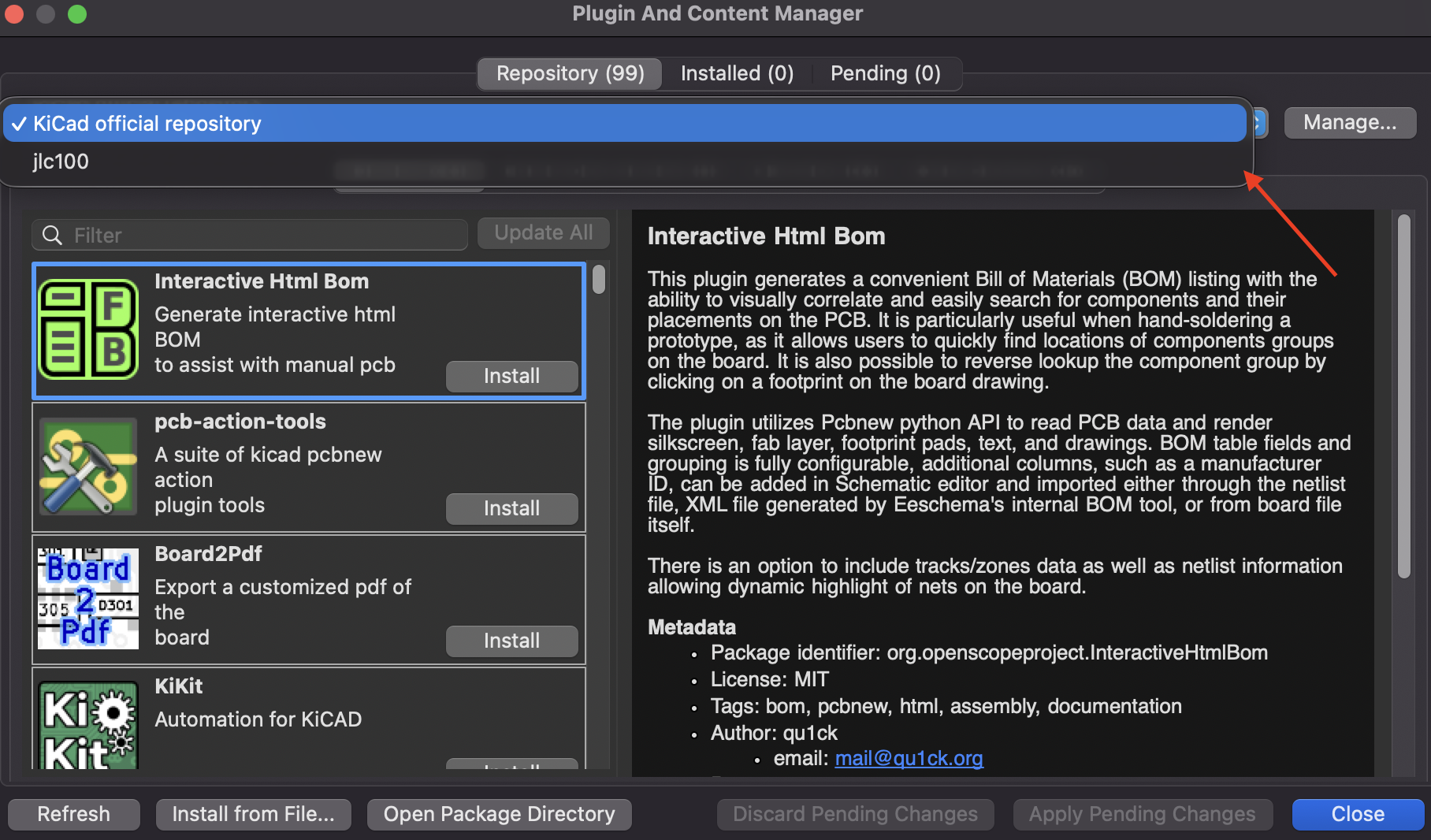
After saving, use the repository dropdown at the top-left of the PCM window to select your newly added tscircuit repository.
Step 5: Install the Library
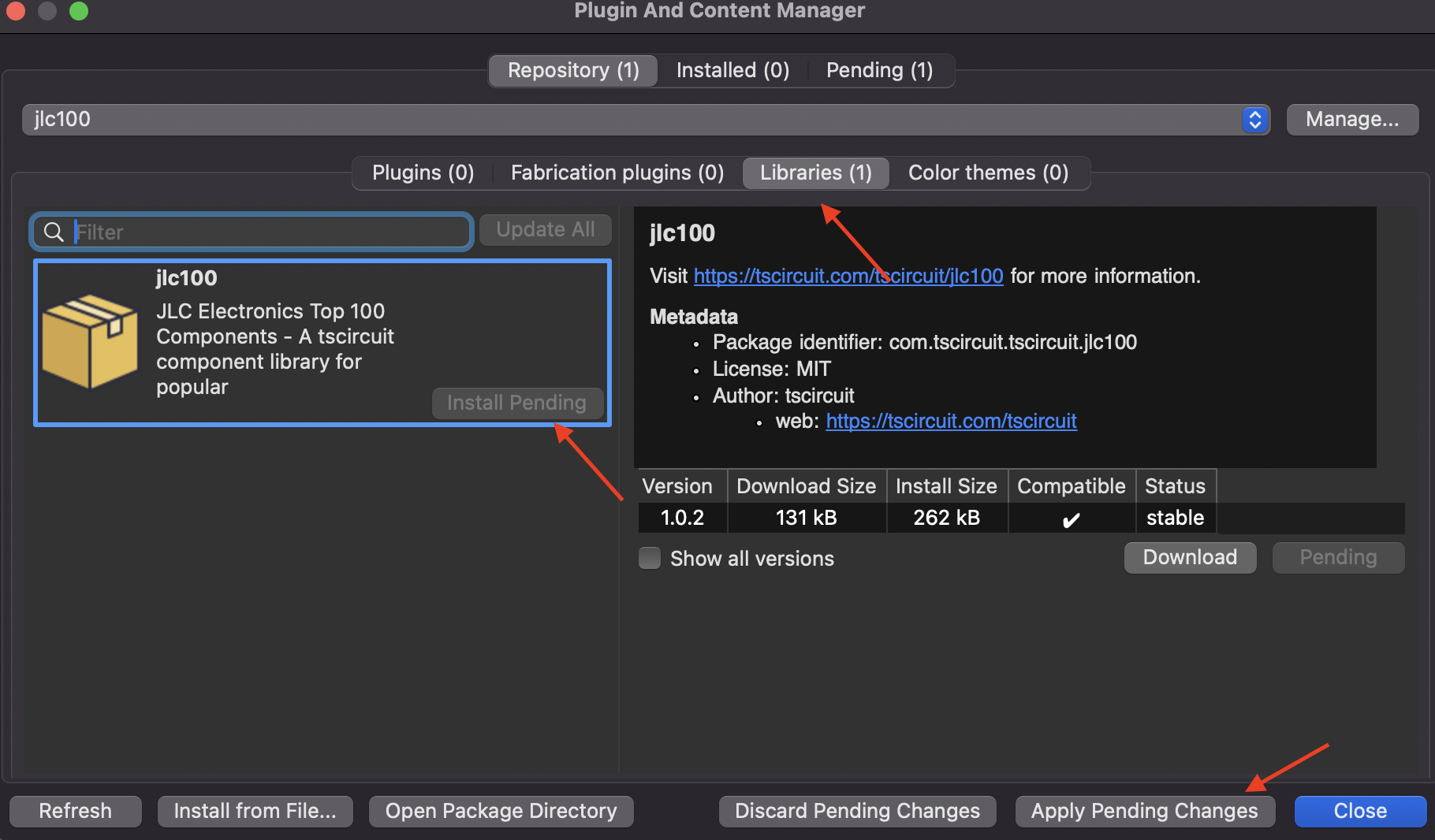
- Navigate to the Libraries tab
- Select the tscircuit library package from the list
- Click the Install button
- Click Apply Pending Changes at the bottom of the window to begin the installation
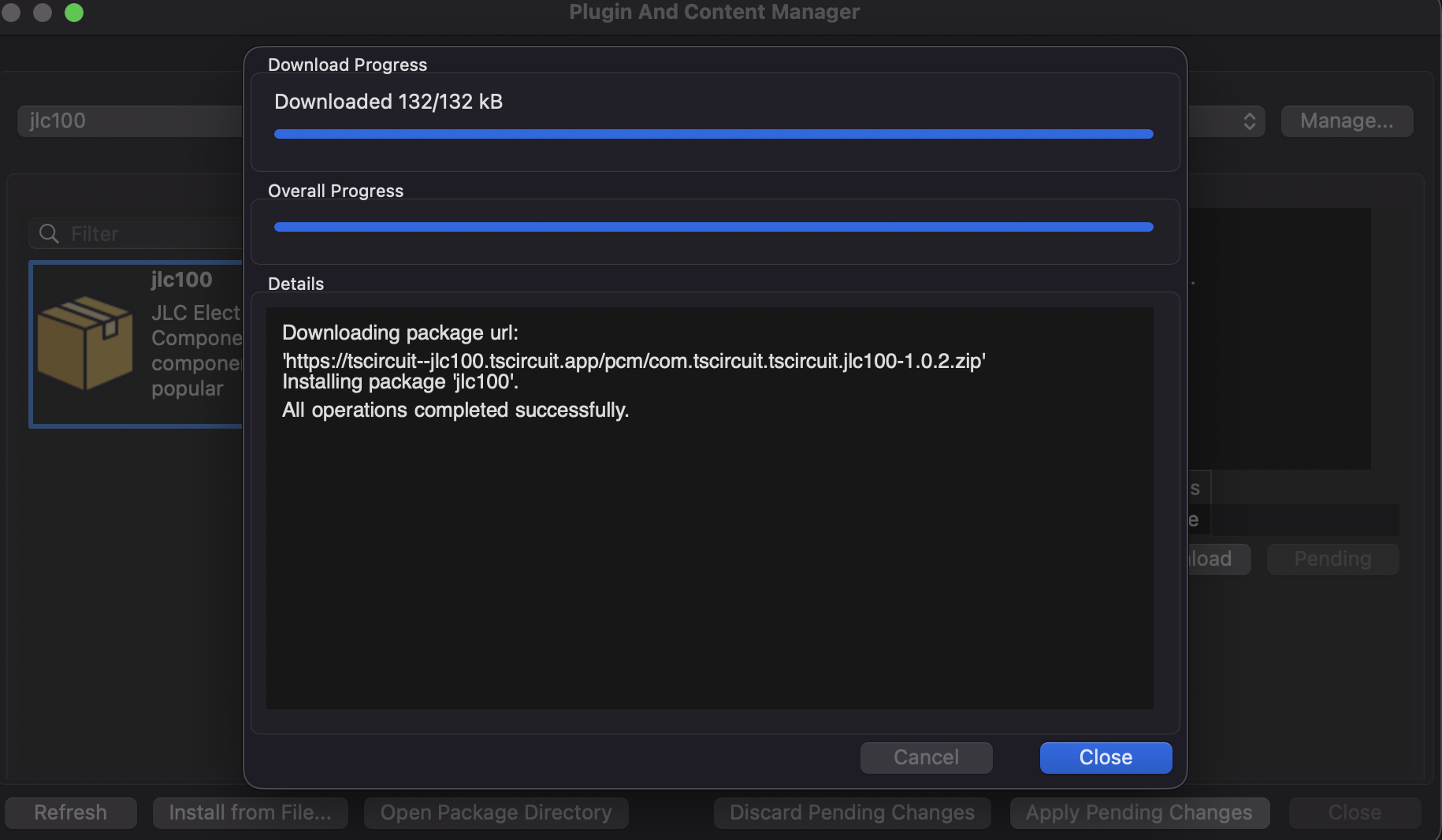
The download progress will be displayed:
Step 6: Verify Installation
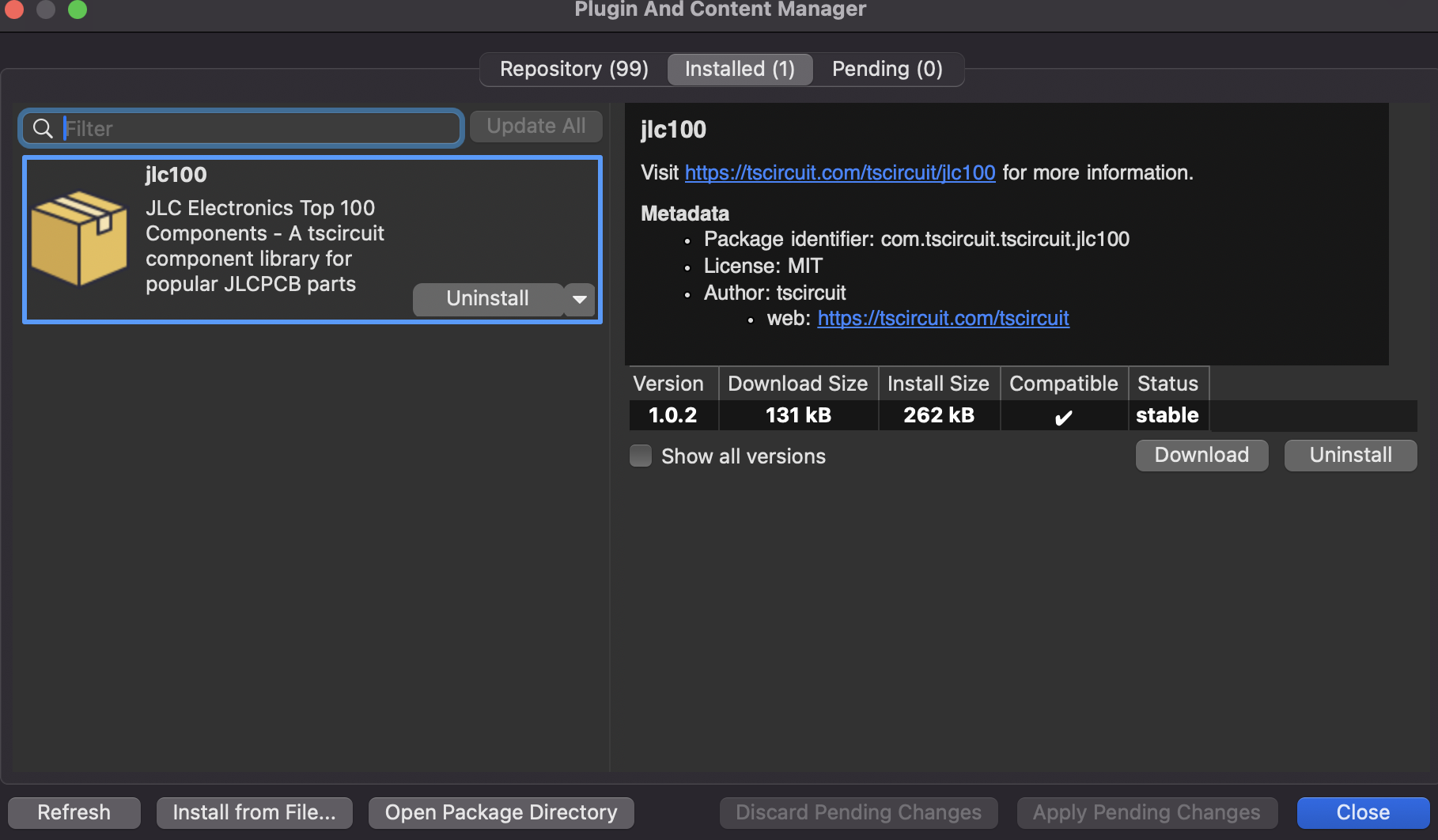
Once the installation is complete, switch to the Installed tab to verify that the library appears in your installed packages list.
Step 7: Use the Library in Your Project
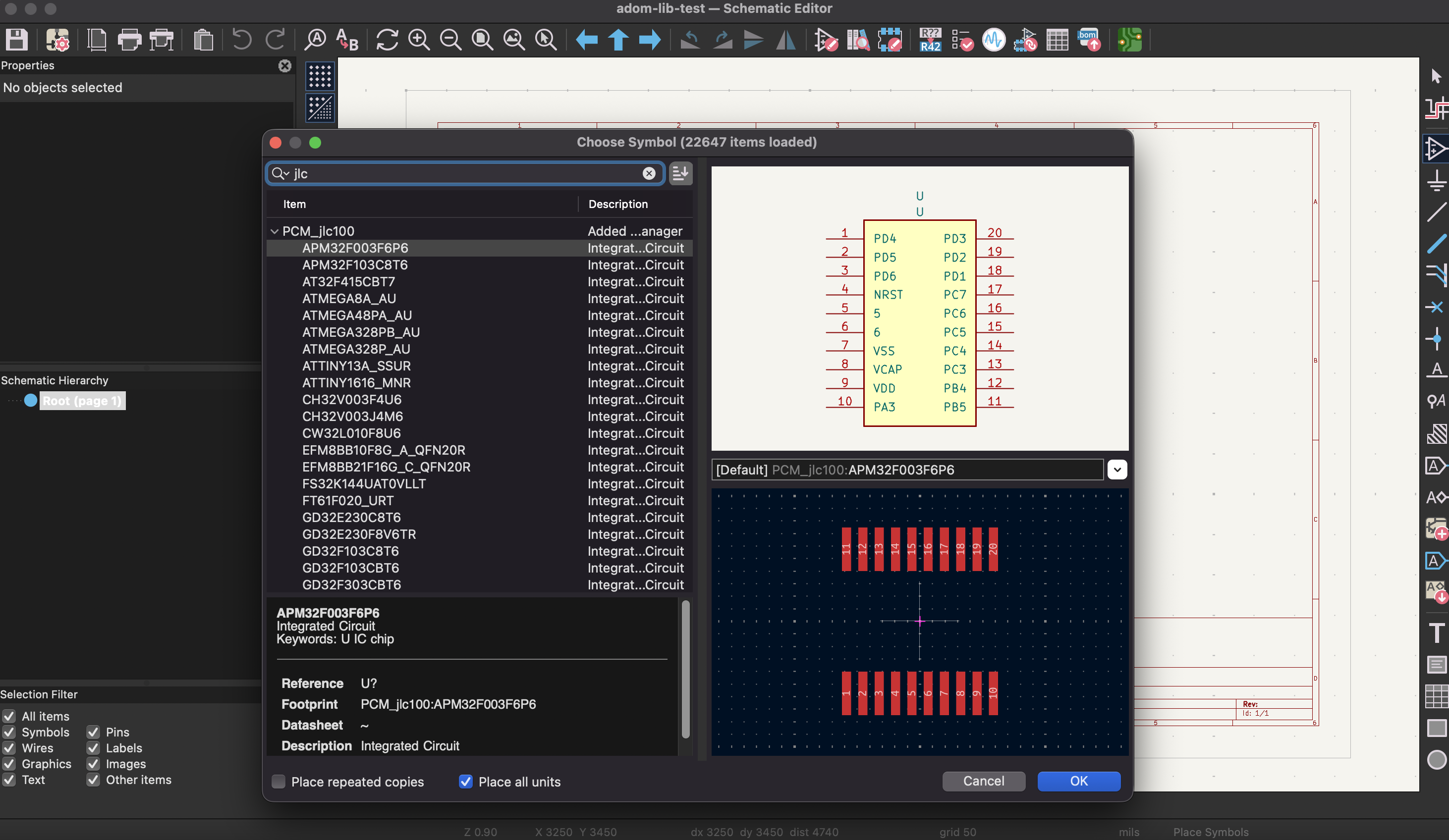
The library is now ready to use in your KiCad projects. Open the Schematic Editor and use Add Symbol (shortcut: A) to browse and place components from the installed library.
The components will appear under a library name prefixed with PCM_ (e.g., PCM_jlc100).